Improve video delivery speed for low-traffic accounts

If your video buffers like this, the most likely cause is that the CDN is not serving content from cache — every segment is being fetched from your origin server on demand. This guide explains why that happens and how to fix it.
Why CDN performance depends on traffic volume
Orange's CDN delivers content by caching files at edge servers close to your viewers. The first time a viewer requests a video segment, the CDN edge server does not have it in cache yet — it must pull the file from your origin server and cache it locally. This first request is called a cache miss.
Every subsequent request for the same file from the same edge location is served directly from the edge cache (cache hit) — much faster, because it never touches the origin.
Cache MISS:  Viewer → CDN Edge → Origin
Cache HIT :  Viewer → CDN Edge (cache)
Scenario: few viewers, rare requests (cold cache)
Edge servers do not hold files in cache indefinitely. Cached content has a limited lifetime — once it expires or is displaced by other content, it is removed. If your video library has many titles but each title is only watched occasionally, segments expire between views and must be fetched from origin again on the next request. In practice, nearly every playback session starts with a cache miss, and viewers experience the same slow start every time — regardless of how long the CDN resource has been active.
Scenario: many viewers, frequent requests (hot cache)
When a large number of viewers watch the same content in a short window, segments are requested repeatedly before they expire. The CDN keeps them in cache continuously, so viewers after the first consistently get a cache hit — fast delivery, low latency, no origin involved.
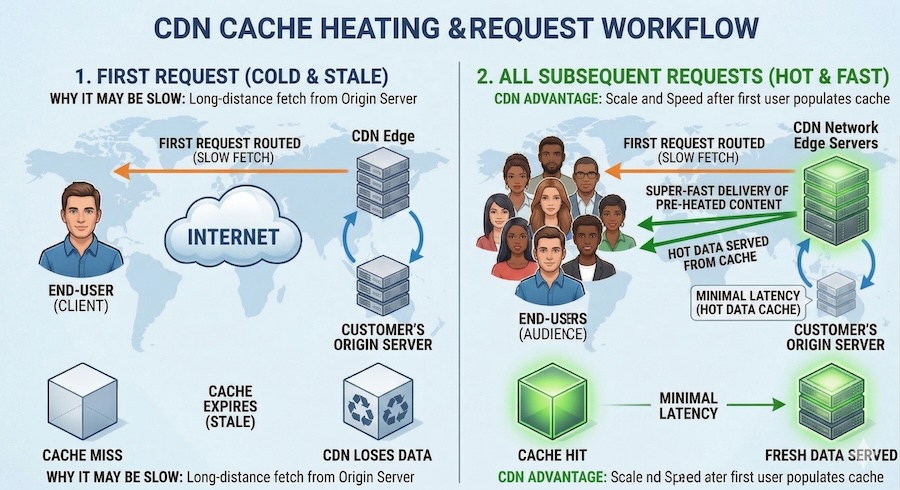
A high time-to-first-byte (TTFB) on video segments is normal when cache is cold. TTFB values of 1000+ ms for small segments are expected when the CDN has not yet cached the content for a given edge location. This is not a CDN malfunction — it is how CDN caching works.
For a CDN to consistently serve content fast, your content must be requested often enough to stay warm in the edge cache. If your viewer traffic is low or unevenly distributed, edge caches evict rarely-requested segments and the CDN reverts to pulling from origin on every request.
How to check your cache hit ratio
There are two ways to check whether your content is being served from cache.
Check in the browser for a specific request
You can inspect the cache status of any individual video segment directly in your browser:
- Open the page where your video is embedded.
- Open browser DevTools: press F12 (Windows/Linux) or Cmd+Option+I (macOS).
- Go to the Network tab.
- Play the video and look for requests to your CDN domain (files ending in
.ts,.m4s,.mp4, or.m3u8). - Click on any segment request and open the Headers tab.
- In the Response Headers section, find the
Cacheheader:Cache: HIT— the segment was served from the CDN edge cache. Fast delivery expected.Cache: MISS— the segment was fetched from origin. This is the cause of high TTFB.
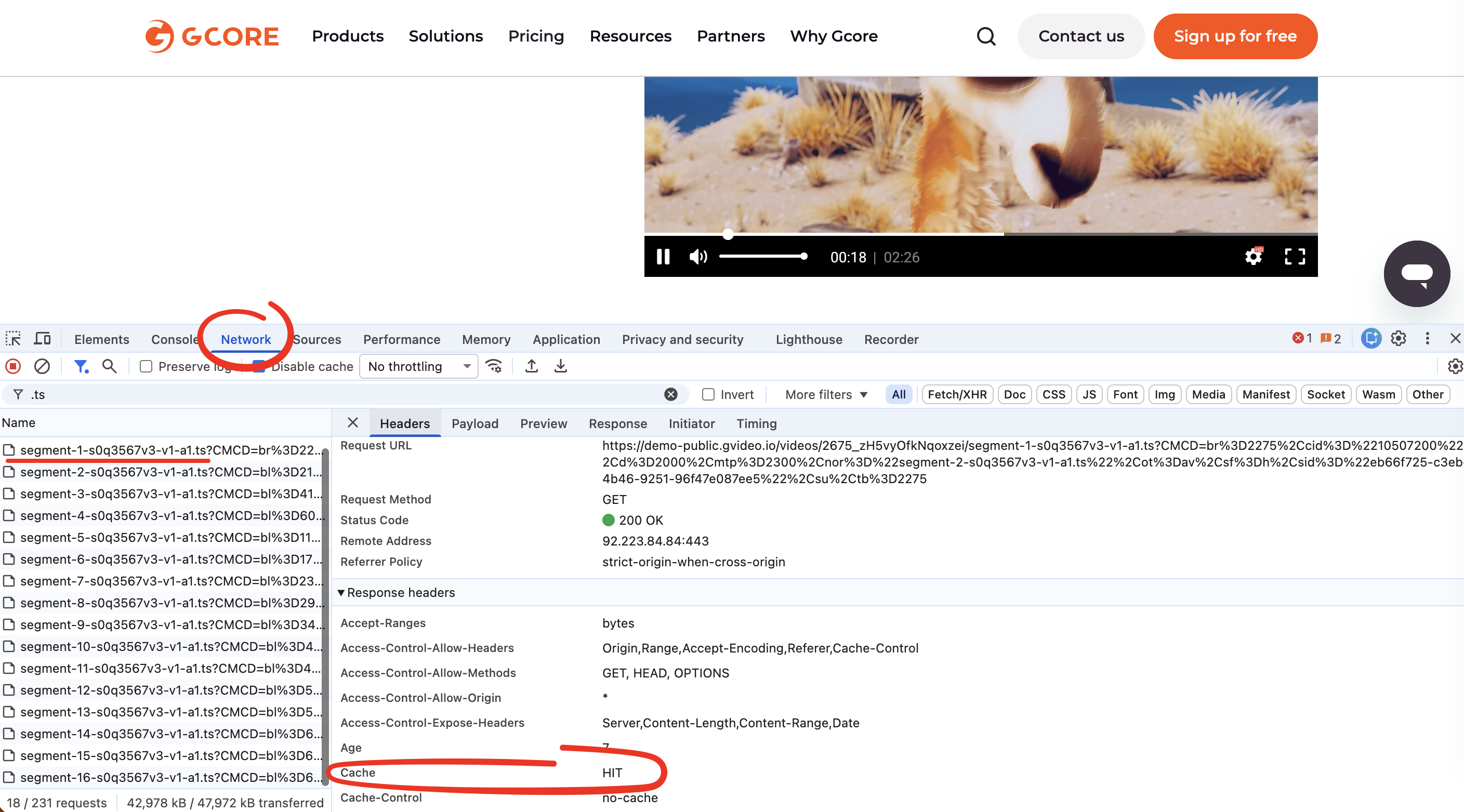
If you consistently see Cache: MISS across multiple segments and multiple page loads, the cache is cold and the steps below will help.
Check in the CDB Technical Web Portal
- Open the CDN Statistics section in the CDB Technical Web Portal.
- Select your CDN resource and review the Cache hit ratio metric.
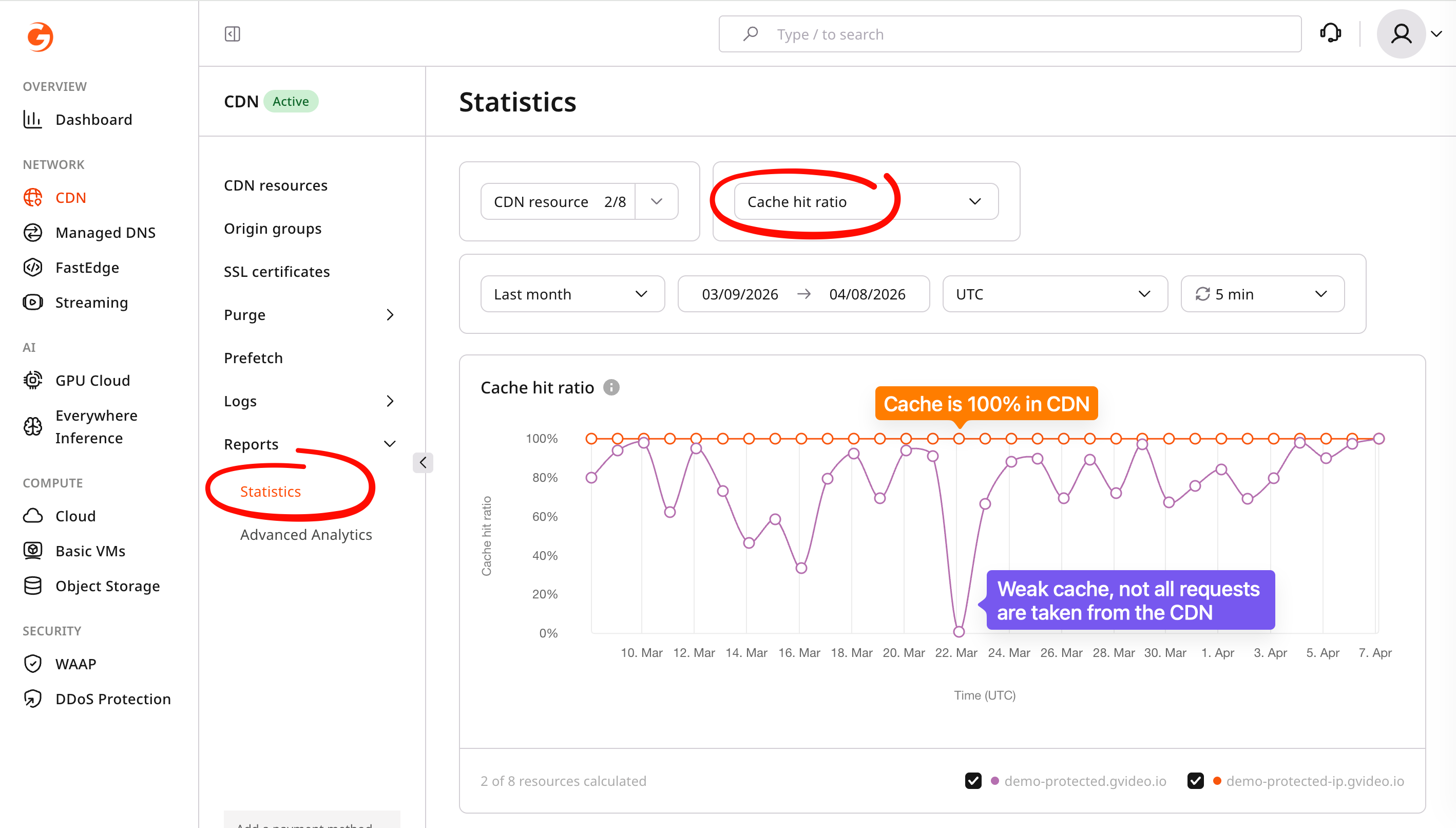
The chart above shows two examples. The orange line stays at 100% — every viewer request is served from cache, meaning fast delivery at all times. The purple line drops repeatedly to 0% — the cache empties between bursts of traffic, so many requests go back to the origin server and viewers experience slow playback until the cache fills again.
A ratio below 80% in combination with slow delivery usually means your content is not being served from cache. For guidance on interpreting and improving the cache hit ratio, see Cache hit ratio is low: how to solve the issue.
How to improve delivery speed
1. Allow the cache to warm up naturally
After a CDN resource is created or new content is uploaded, it takes time for edge servers to populate their caches as real viewers request files. In most cases, wait for steady viewer traffic before evaluating delivery performance.
If your viewer traffic is consistently low (fewer than a few hundred requests per day per title), natural cache warmup may never produce a meaningfully high cache hit ratio — use the options below instead.
2. Pre-load popular content with Prefetch
If you have a set of video files that you expect to receive significant traffic, you can push them into the CDN cache before viewers request them using the Prefetch feature. This eliminates cold-start latency for those specific files.
Prefetch is recommended for MP4 files. HLS and MPEG-DASH streams consist of a manifest file (.m3u8 or .mpd) plus hundreds of individual segments (.ts, .mp4, .m4s, .m4v, .m4a, etc.). To fully pre-load a single title you would need to prefetch the manifest and every segment file separately — for a large video library this quickly becomes impractical. For HLS/DASH content, natural warmup or origin shielding are better alternatives.
See Load content to CDN before users request it for instructions.
3. Verify cache TTL settings
If your CDN resource is configured with very short or zero cache TTLs, segments are evicted quickly and the cache never stays warm. Check that your cache settings allow segments to be stored for a reasonable duration:
| File type | Recommended TTL |
|---|---|
VOD segments (.ts, .m4s) | 1–24 hours |
VOD playlists (.m3u8) | 5–60 seconds |
Initialization segments (.mp4) | 1–24 hours |
TTL is the maximum time a file can stay in cache. In practice, content may be removed earlier — for example, when an edge server evicts less-requested files to make room for new ones, or when a cache purge is triggered. Setting a high TTL improves the chance of a cache hit but does not guarantee content will always be cached.
To review and configure cache TTLs, see Specify cache lifetime on a CDN resource or origin.
Also verify that your origin is not sending Cache-Control: no-store, no-cache, or max-age=0 headers for video segments — these headers prevent caching entirely. See Cache hit ratio is low: how to solve the issue for a full list of headers that block caching.
4. Enable origin shielding
Origin shielding is the most effective way to improve cache hit ratio for low-traffic content. It inserts a dedicated shield (precache) server between your origin and all CDN edge servers.
Instead of every edge location independently pulling the same segment from your origin, all edge servers pull from the shield — which itself caches the content. Once a segment is cached on the shield, any edge server worldwide can retrieve it from the shield rather than from origin, dramatically increasing effective cache reuse.
Origin shielding is a paid option. Contact CDB support or your account manager to enable it.
To configure shielding after it is enabled on your account, see Enable and configure origin shielding.
Recommended shield location: choose the location geographically closest to your origin server.
Check CDN-to-origin connectivity
When you see a high number of cache misses, the speed of the connection between CDN edge servers and your origin becomes critical. On every miss, the edge pulls the file directly from your origin — so if your origin is slow, distant, or under load, viewers feel that latency on every uncached request.
Your origin server must be fast and reliable. It should respond in well under a second, be hosted close to your primary CDN shield location, and have no firewall rules blocking CDN server IPs. For a full checklist of origin-side issues, see 5xx error: how to solve server issues.
Alternatively, use CDB's own infrastructure as your origin. CDB's storage and streaming services are co-located with the CDN network, meaning the CDN-to-origin path is internal and optimized for low latency — eliminating the origin bottleneck entirely:
- Object Storage — S3-compatible storage for VOD files (MP4, HLS segments, images). Use it as a CDN origin for fast, reliable pulls with no external hops. See Use storage as the origin for your CDN resource.
- Video Streaming for VOD — upload video files and let CDB handle transcoding, storage, and CDN delivery as a single integrated service.
- Video Streaming for live streams — ingest live streams via RTMP, SRT, or WebRTC and deliver them globally through Orange's CDN with no external origin required.
When to contact support
If you have applied the steps above and delivery is still slow, contact Support and include:
-
Show us the affected "bad" video URL (CDN segment URL, not the player page).
-
Show us your cache hit ratio from the Statistics section (screenshot or value).
-
Show us response headers and timing for the slow segment. Get URL of your "bad" file, change url in command below to your url. Run this command from the viewer's machine where video is bad: (script works on macOS, Linux, and Windows 10+):
curl -v -o /dev/null -s -w "\nspeed: %{speed_download} bytes/s\ntime_total: %{time_total}s\ntime_starttransfer: %{time_starttransfer}s\n" https://<your-cdn-domain>/path/to/segment.tsThe
-vflag prints the full HTTP response code and all response headers (includingCache,X-ID,X-Cache, andServer), which help support identify which edge server handled the request and whether it was a cache hit or miss. -
Your CDN debug snapshot. Open
https://gcore.com/.well-known/cdn-debug/jsonin your browser and copy the full JSON output into your ticket. This snapshot shows:- Your public IP and geographic location — confirms which region the request came from
- Edge server IP and location (
server_headers) — shows which CDN PoP served you; if this is far from your actual location, it indicates a routing issue
Example output:
{ "request_info": { "your ip": "203.0.113.10", "host": "gcore.com", ... }, "client_headers": { "city": "Singapore", "country": "{'code': 'SG'}", ... }, "server_headers": { "server": "sin-hw-edge-gc05", "country": "{'code': 'SG'}", ... }, "other_headers": { "traceparent": "00-25717f...-01", ... } } -
(Optional) A HAR file recorded during playback.